
Published: November 16 2026
Completing an Incomplete Submission
A step-by-step guide for agents
Did you start your finalized offer but not finish it? No problem. Your property is saved on your dashboard as Incomplete, and you can pick right back up where you left off. Follow the steps below.
Before you start (callout box):
A property only appears on your dashboard once you have started the finalized (official) offer process. A preliminary offer on its own will not show here.
An unfinished submission is saved as Incomplete. Your progress, including photos, saves as you go. Nothing is lost. Just go back in, finish any tabs that are not complete, and submit.
Step 1: Open your property from the dashboard
Log in at quickbuysubmission.reloviewscomplete.com/auth, find your property on the dashboard, and click Incomplete to reopen it.
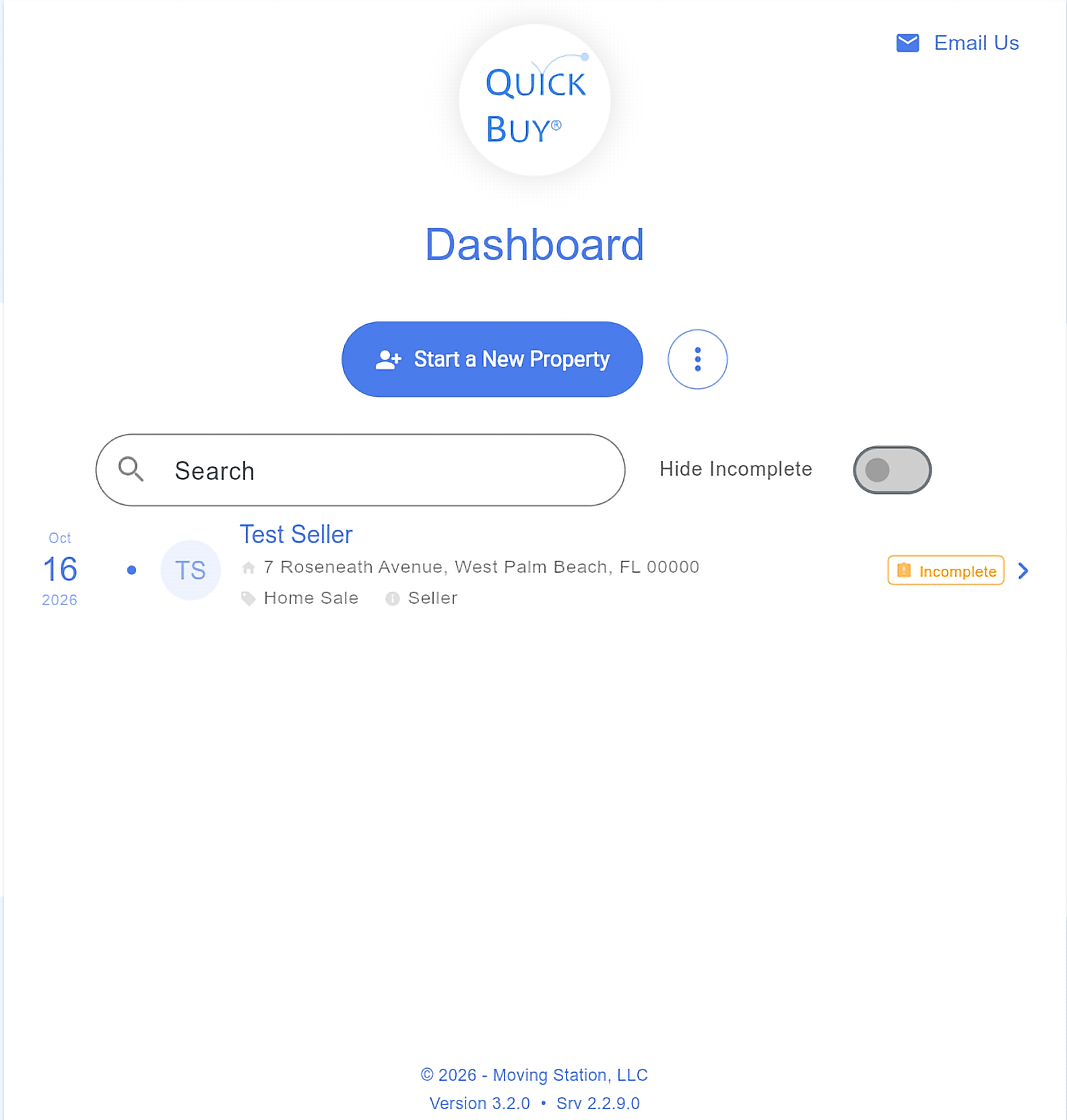
Step 2: Use the tabs to finish each section
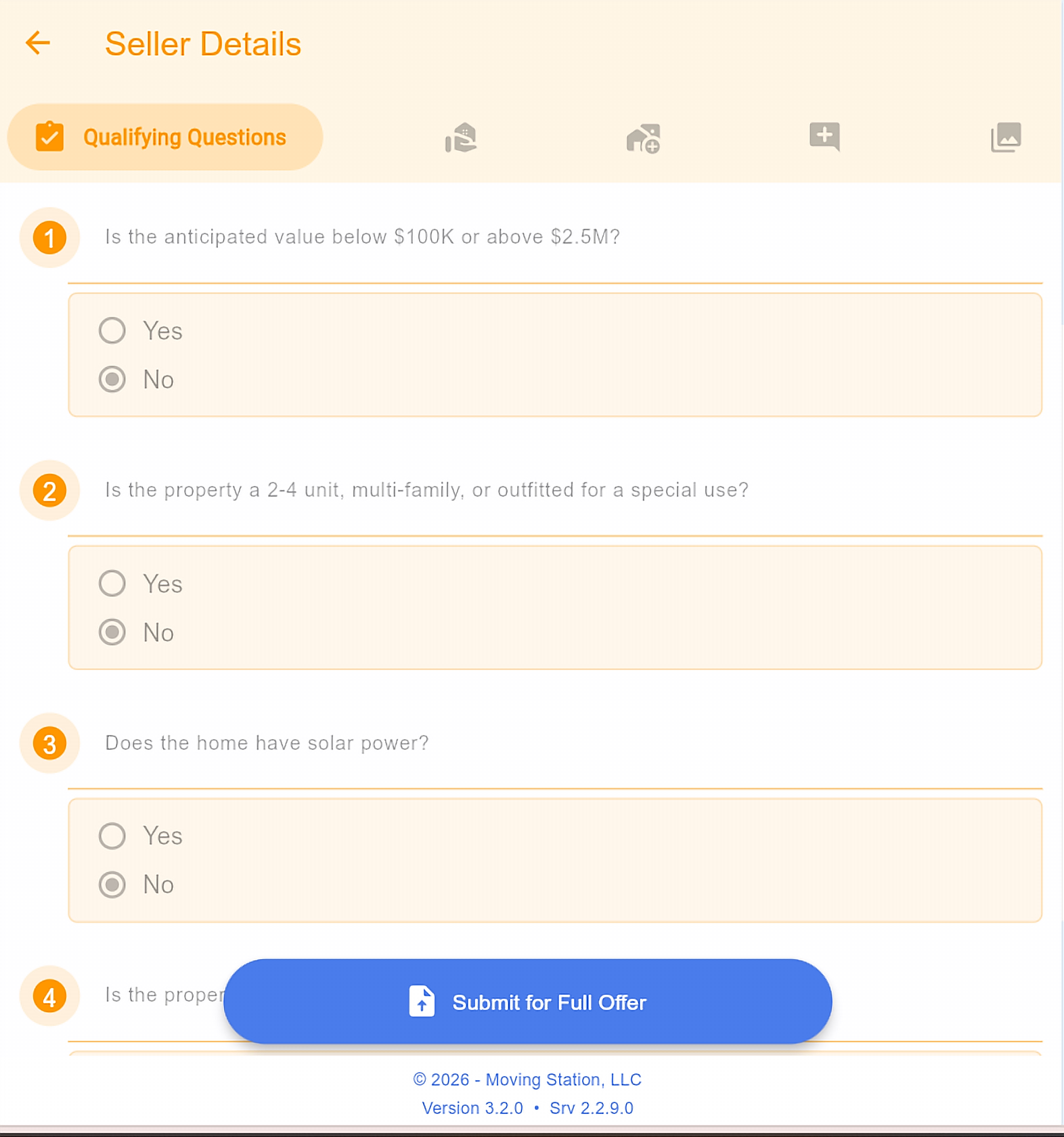
Tab 1: Qualifying Questions (orange)
The initial screening questions about the property. (These can’t be edited)
Across the top you will see five tabs, color-coded. On a phone, swipe across the top to move between them; on a computer, click each tab. On the first four tabs, the pencil icon to edit is at the bottom of that tab’s page. The Photos tab uses + Add.
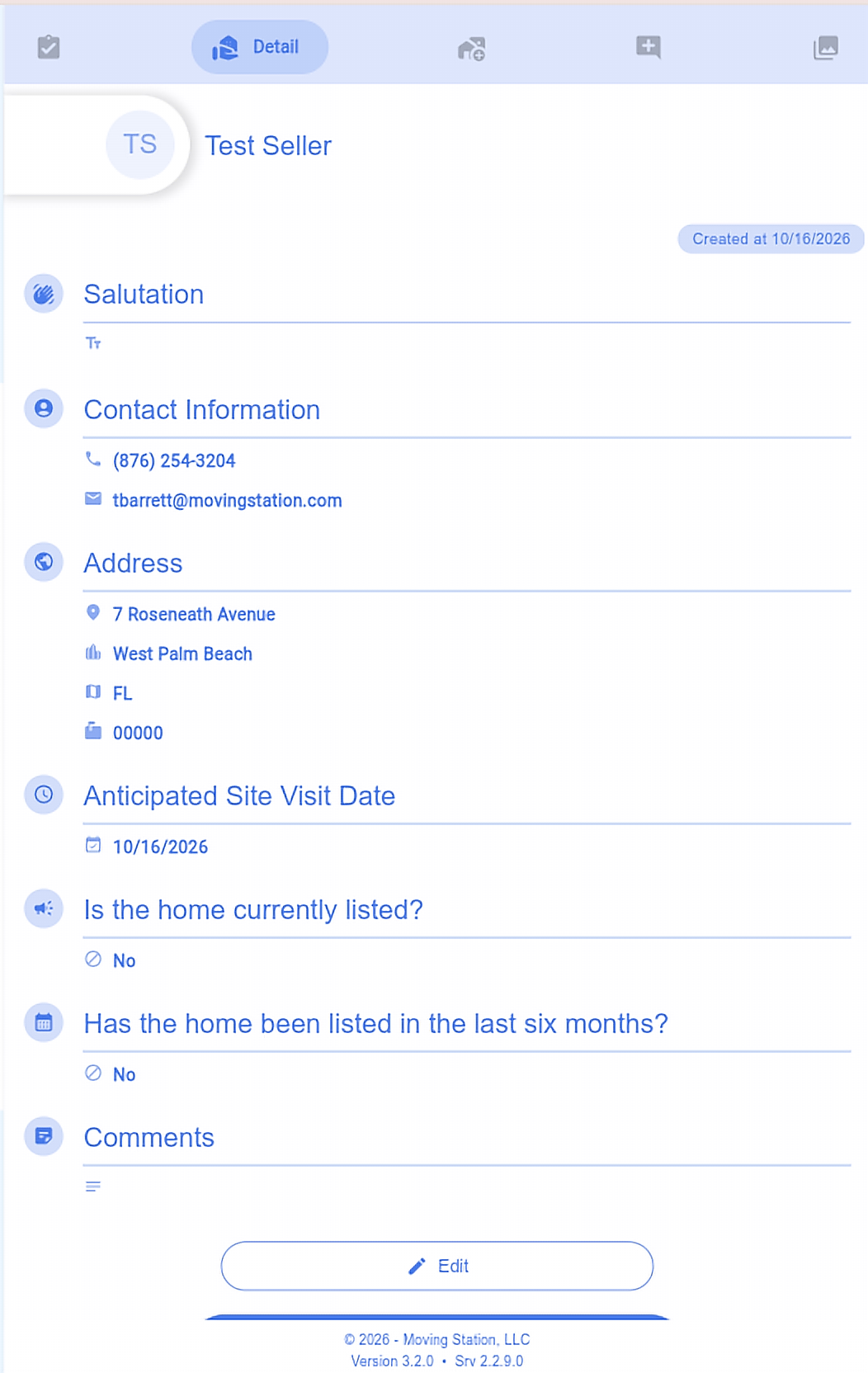
Tab 2: Seller Details (blue) Icon: hand-holding-house
Seller salutation, contact, and address; anticipated site visit date; whether the home is currently listed or was listed in the past 6 months; and a comments box. Tap the pencil icon at the bottom of the page to edit.
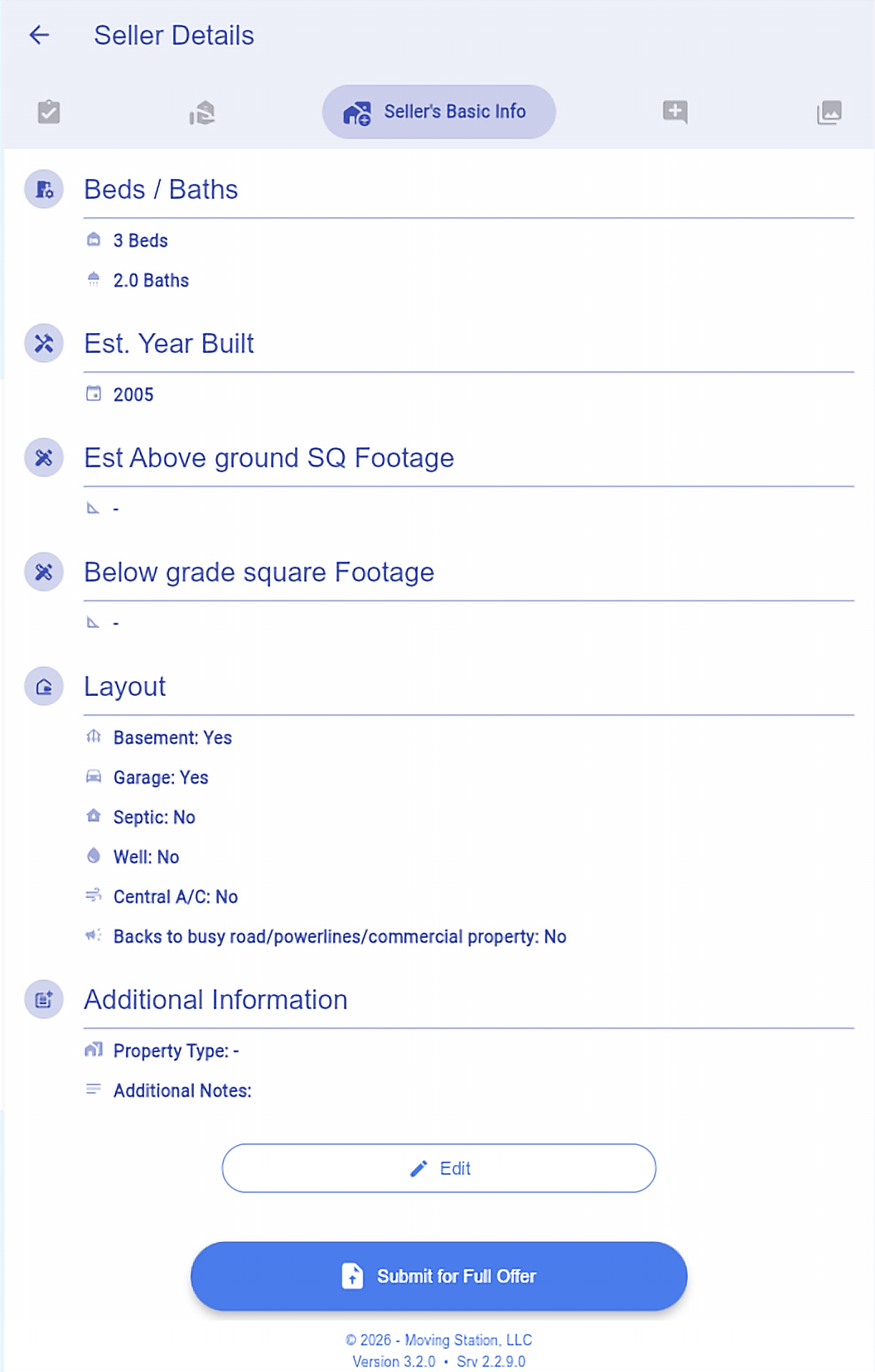
Tab 3: Property Details Icon: house + plus
Number of bedrooms and bathrooms, year built, estimated above-grade and below-grade square footage, layout, and features e.g. (basement, garage, septic, well, central AC). Tap the pencil icon at the bottom of the page to edit.
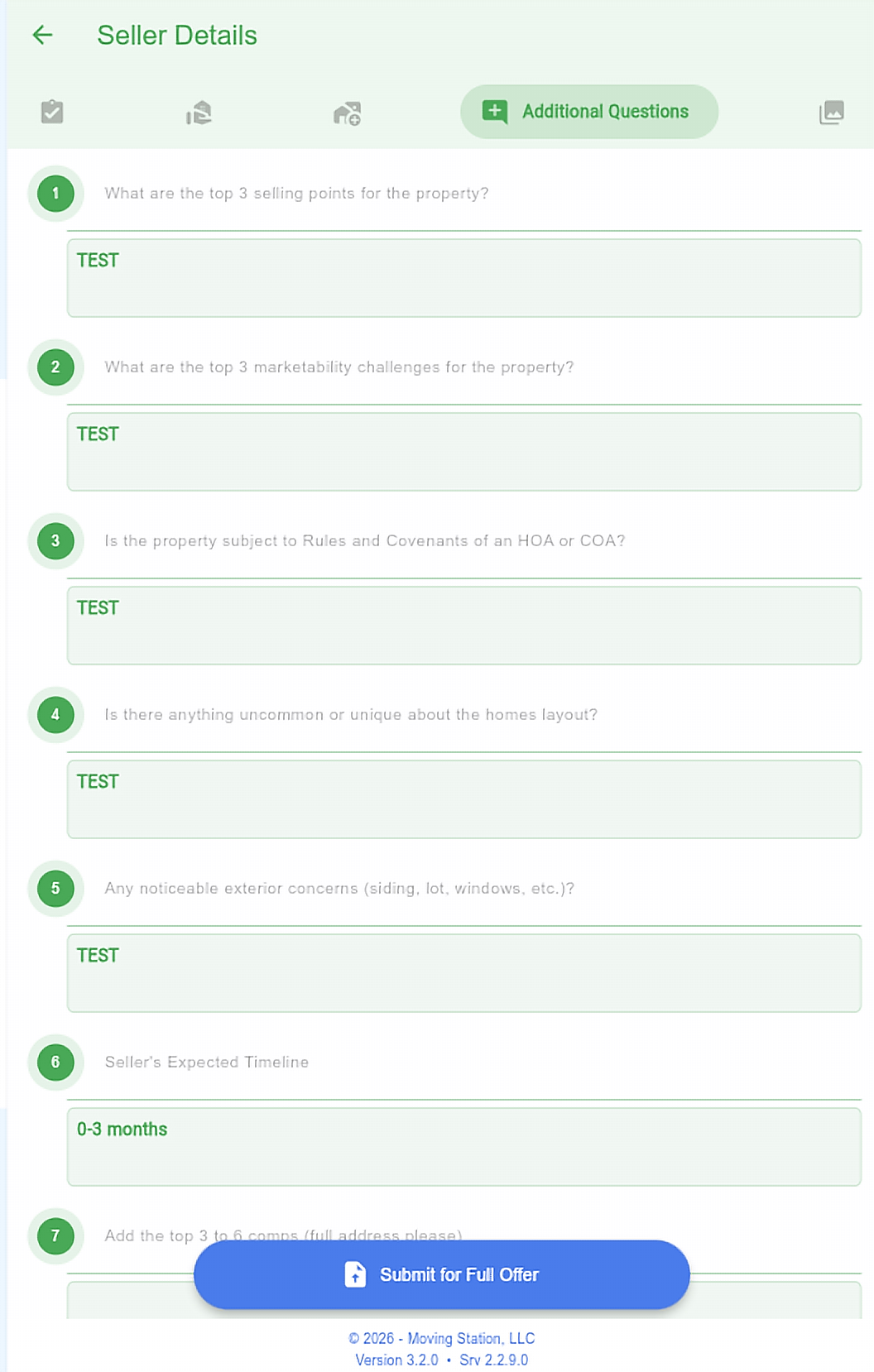
Tab 4: Additional Questions (green) Icon: comment + plus
The additional 17 question form, including your list-side and buy-side commission and other property details. Tap the pencil icon at the bottom of the page to edit.
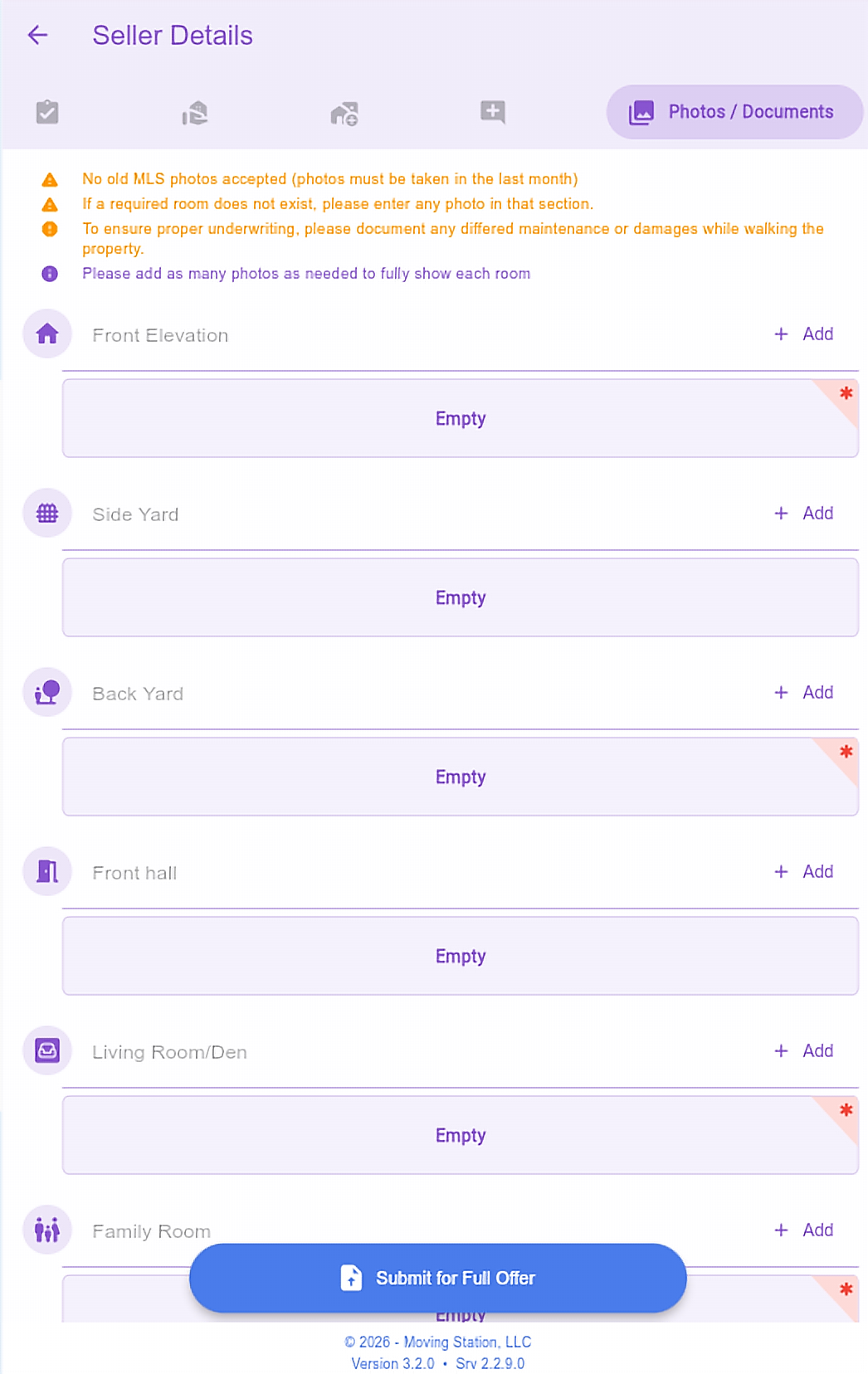
Tab 5: Photos / Documents (light purple)
Upload a photo for each required area. Required areas are marked with a red asterisk and must be filled before you can submit. Click + Add on the right of each room to upload.
Step 3: Required photos
Required photos (marked with a red asterisk) are based on what you entered. For example, if you listed 3 bedrooms and 2 bathrooms, you will need a photo of each bedroom and each bathroom.
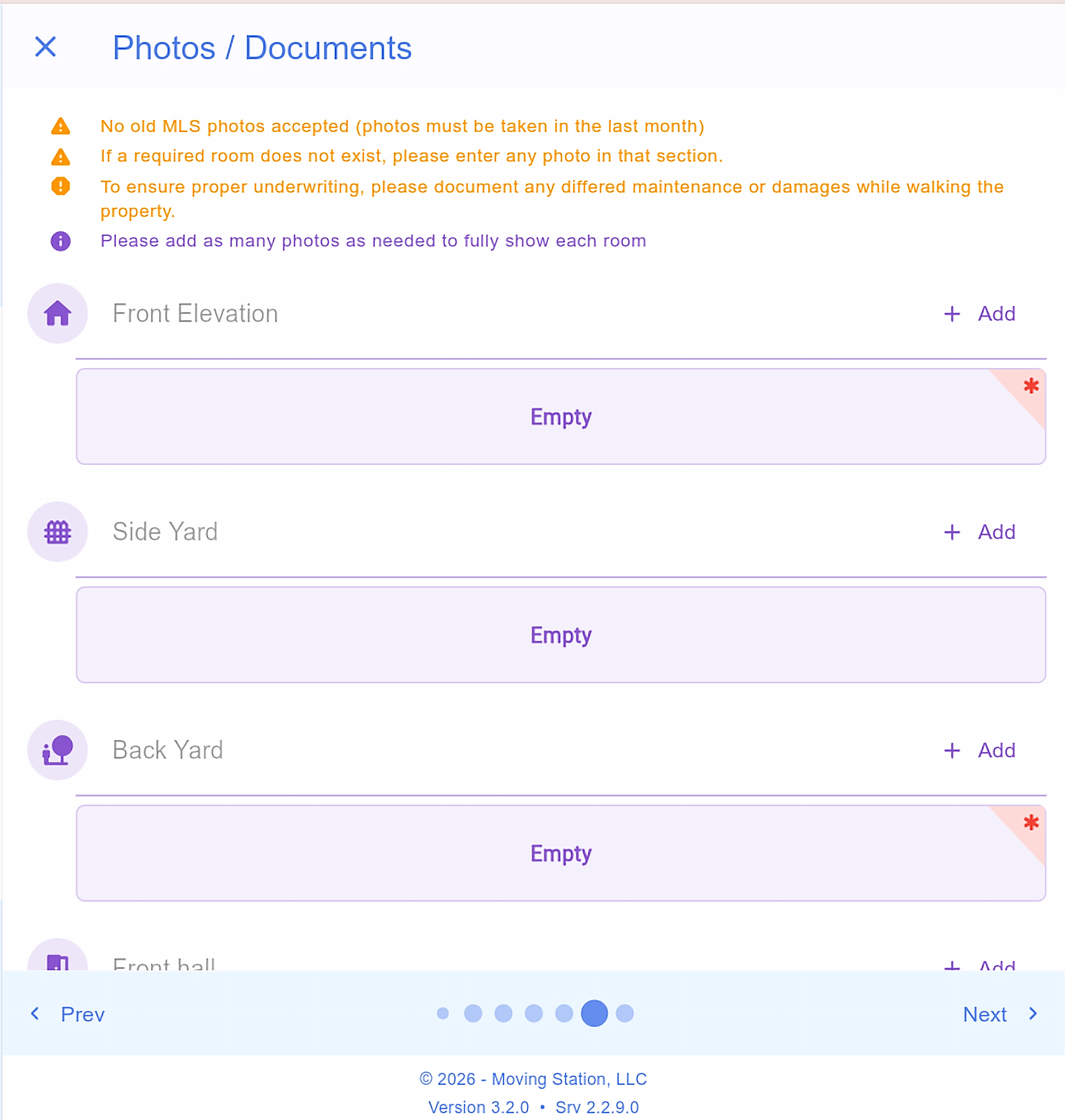
Commonly required:
Front elevation
Backyard
Living room or den
Family room
Kitchen
Each bedroom
Each bathroom
Garage (if you indicated one)
Basement (if you indicated one)
Step 4: Review and submit
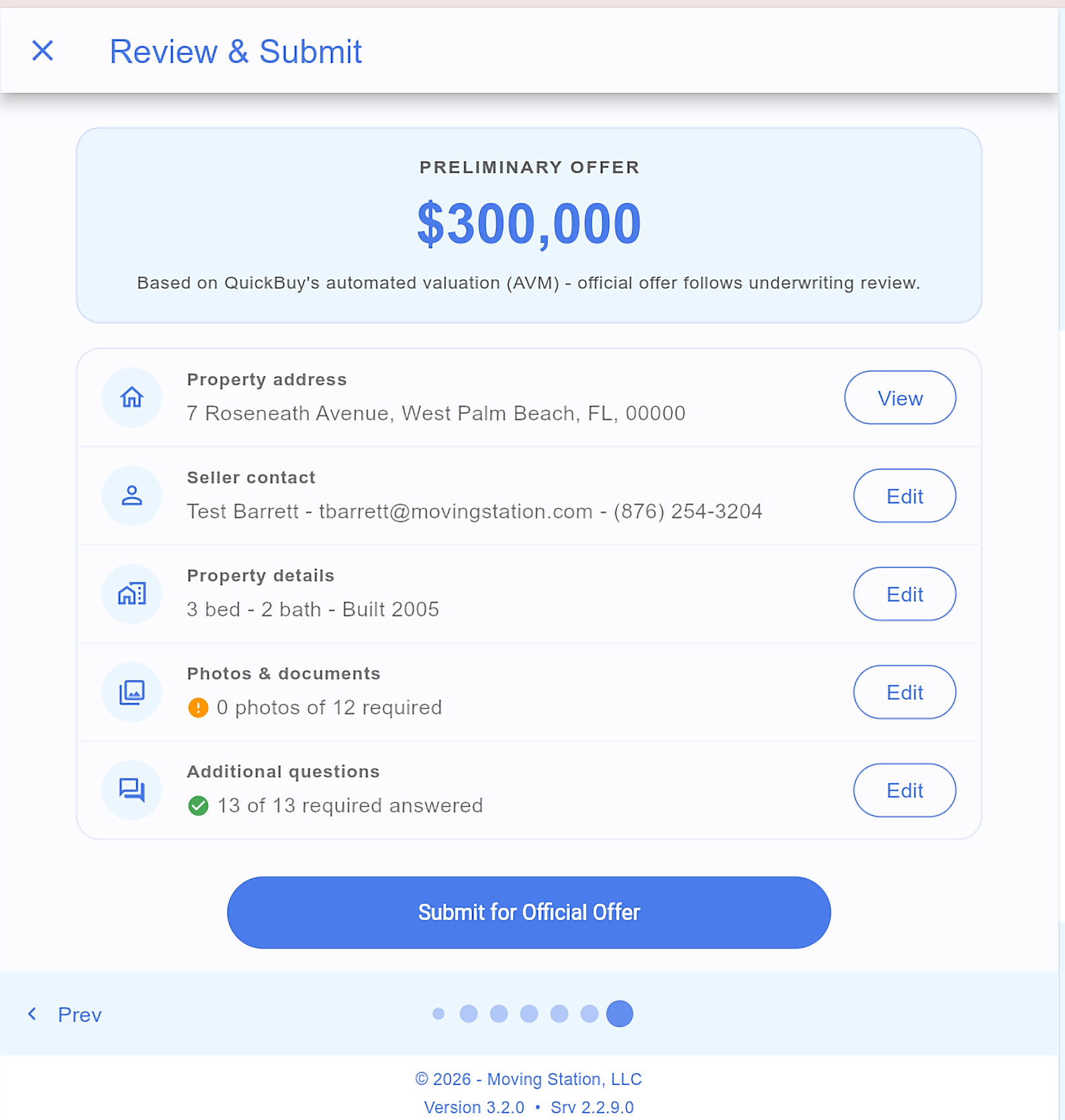
Once every required field and photo is complete, go to the Review & Submit page. You can view and edit each section here (the property address is view-only). When everything looks good, click Submit for Official Offer.
What happens next
Once submitted, QuickBuy’s asset team underwrites the property, reviewing condition, comps, and market data. The official offer is emailed to you and your seller. Turnaround is usually 2 to 3 business days.
Questions?
Email quickbuy@movingstation.com.
Additional Guides

Copyright 2026 Moving Station, LLC